Internet Bank FAQ
You are welcome to visit any branch of Artea bankas and sign your internet bank services agreement. Please, bring identification documents of a natural or a legal person. If you don‘t have an account with Artea bankas, one will be opened for you, and you will receive the means of identification: the user name (ID) stated in the agreement and the initial log-in password, SMS or code generator, or your electronic signature will be linked for log-in and/or signing purposes.
Enter https://e.sb.lt/ in the search field of your browser and press Enter:

or press the link in the Bank website at www.sb.lt -> Prisijungti -> Prisijungti -> „Interneto bankas“ (www.sb.lt -> Sign In-> Internet bank).
Step 1
Select the means of identification (Smart-ID, Mobile-ID, SMS / generator, Biometrics/PIN).

Enter your User Name (ID) in the first field of the online bank access window. Your User ID can be found in your internet bank services agreement. It consists of alphanumeric symbols and can’t be changed.
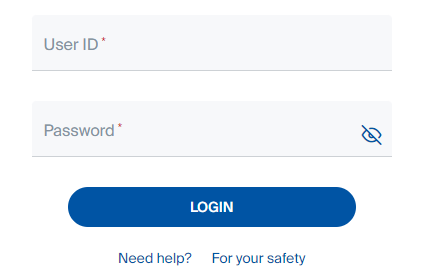
Enter your log-in password in the second field of the internet bank access window. When logging-in for the first time, you have to enter your Initial Password that can be found inside your password envelope or in the Agreement (where no envelope is given). It consists of eight numbers and is used for the first log-in only.
When connecting with the means of identification: Smart-ID, Mobile-ID or Biometrics/PIN, you will need to enter the user's personal code in the second field of the Internet Bank login window.
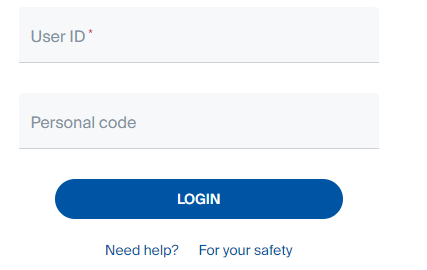
Once you have entered your User ID and log-in password/Personal code, press Login.
Step 2
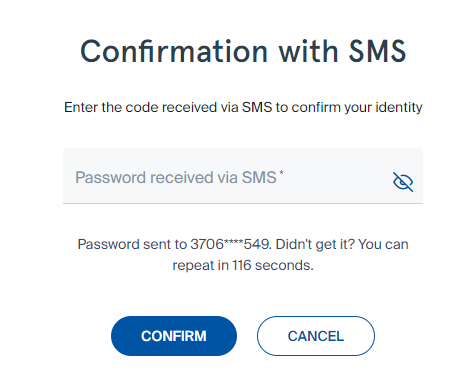
In the new window, enter the requested SMS and the password received by text message, then press Confirm.
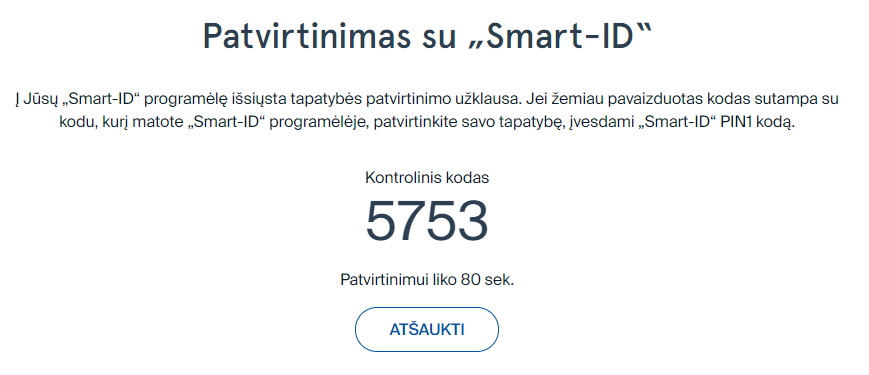
If you choose to connect using Smart-ID, you have to press Confirm in the Smart ID app on your smartphone, them check if the control code matches, and enter PIN1 code.
If you choose to connect using Mobile-ID, you have to enter your phone number and press Confirm, then check if the control code in the pop-up window matches, confirm the log-in and enter PIN1 code.
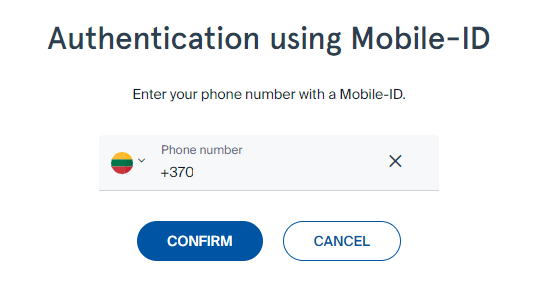
Step 3
If you are logging-in to your internet bank for the first time:
You have to change the Initial Password in the new window (the password must consist of at least 6 letters of the Latin alphabet, numbers and / or standard symbols, maximum 30 symbols), re-enter the same log-in password, press Change and your log-in password will be changed.
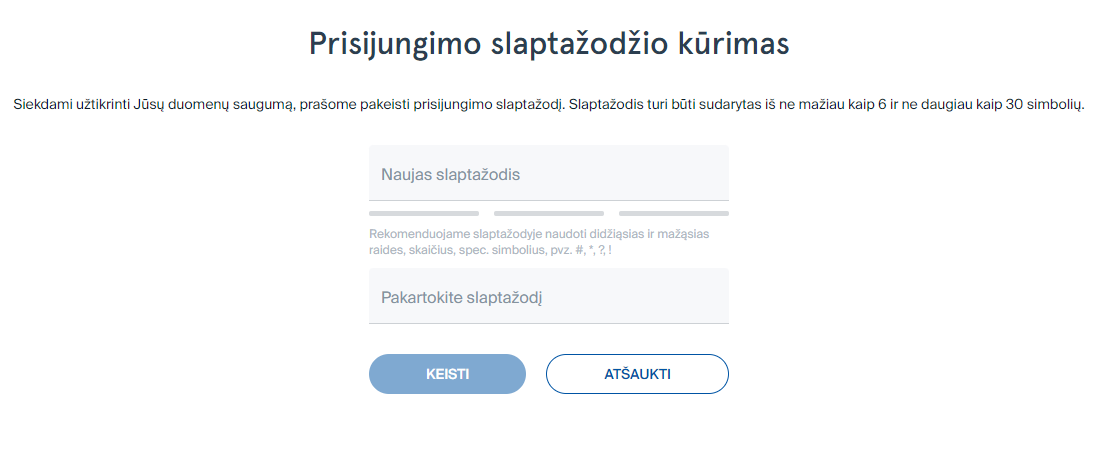
If you choose user-generated password as the transaction signing method, you have to create your transaction signature password when you log-in for the first time. Enter your new signature password (consisting of at least 6 letters of the Latin alphabet, numbers and / or standard symbols, maximum 30 symbols).
The Bank recommends that you keep the password envelope or the Agreement containing the Initial Password because if the User forgets the log-in password, they can visit a branch of the Bank and their Initial Password from the envelope will be restored free of charge, or, where no password envelope has been issued – the Initial Password printed in the Agreement will be restored.
If you entered a wrong User ID, a message with an explanation text will appear on your screen.
If you forgot your User ID, it can be found in your internet bank services agreement.
Log-in again.
If you no longer have your Agreement, please, visit any branch of Artea bankas (bring your personal ID), and a new copy of your internet bank services agreement will be printed out for you.
If you entered a wrong log-in password/personal code, a message with an explanation text will appear on your screen. Check your log-in password and try again.
If you enter a wrong log-in password/personal code 5 (five) times in a row, your internet bank access rights will be suspended. If you wish to continue using internet bank, please, visit any branch of the Bank and fill-in an application (bring your personal ID).
If you entered a wrong signature password (one of your transaction signature methods: SMS message code, code generator), a message with an explanation text will appear on your screen. Check your signature password and try again.
If you enter a wrong signature password 3 (three) times in a row, your internet bank access rights will be suspended. If you wish to continue using internet bank, please, visit any branch of the Bank and fill-in an application (bring your personal ID).
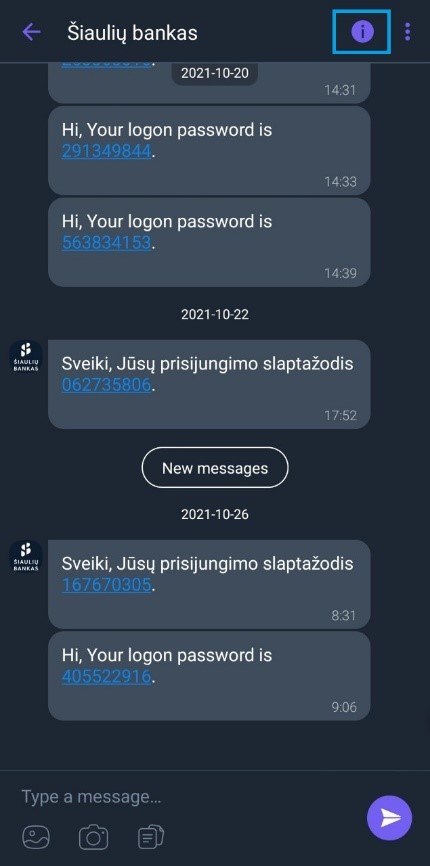
- Disable push notifications from the bank in your Viber application. Open your chat with Artea bankas and click on the icon at the top of the screen (letter i in a circle).
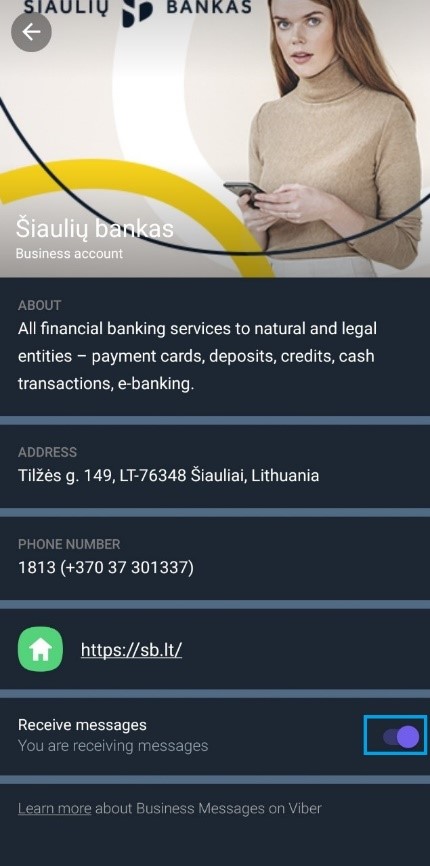
- Disable the bank’s notifications by sliding the bottom button to the left.
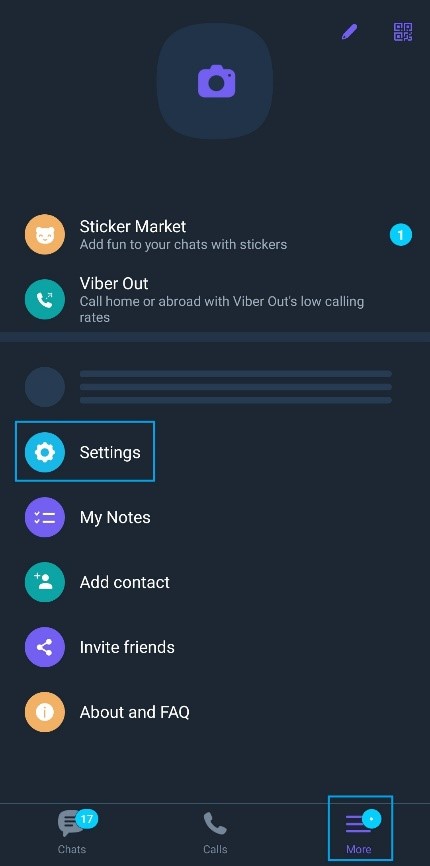
Viber account is not connected to the specific phone. It is connected to a phone number that was used to create a Viber account. Once you uninstall the application, the account remains open and active. This may interfere with the delivery of SMS messages to you. If you wish to continue receiving SMS messages, deactivate the account in Viber application (removal of the application does not mean that your account is deactivated). If you no longer have Viber application on your phone, you will have to download and install it to be able to remove your account:
- In the menu, go to More -> Settings.
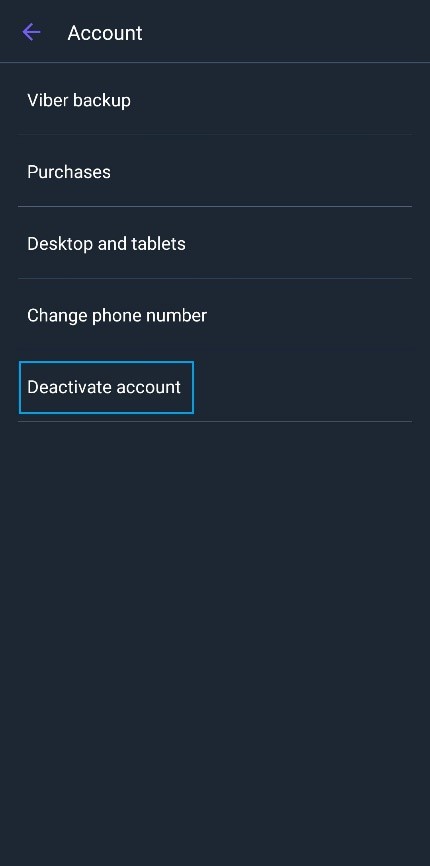
- Go to Account.
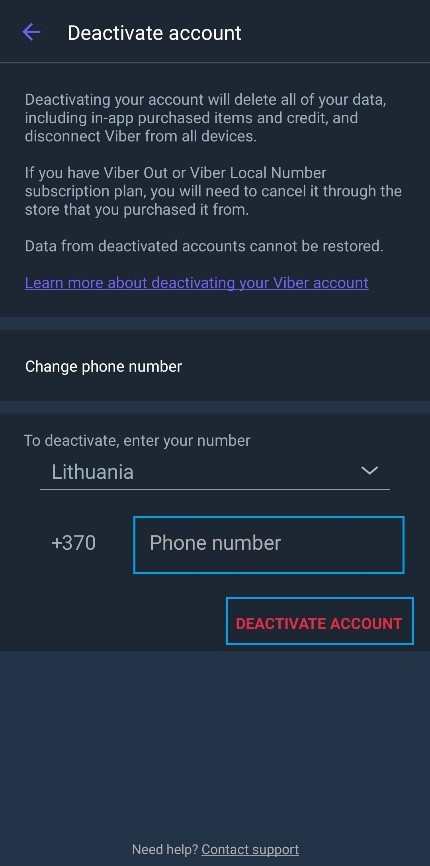
- Go to Deactivate account.
- Enter your phone number and click on Deactivate account.
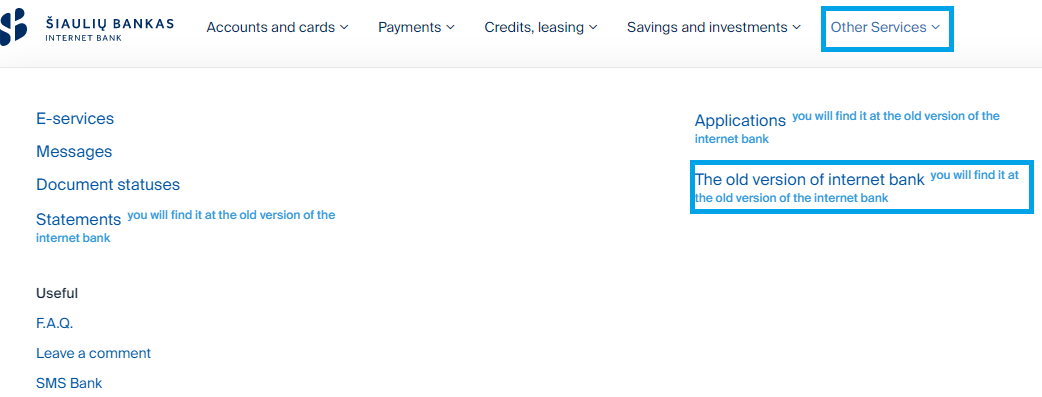
- Go to the old version of the Internet Bank. Log in to your Internet Bank account, go to Other Services -> The old version of internet bank.
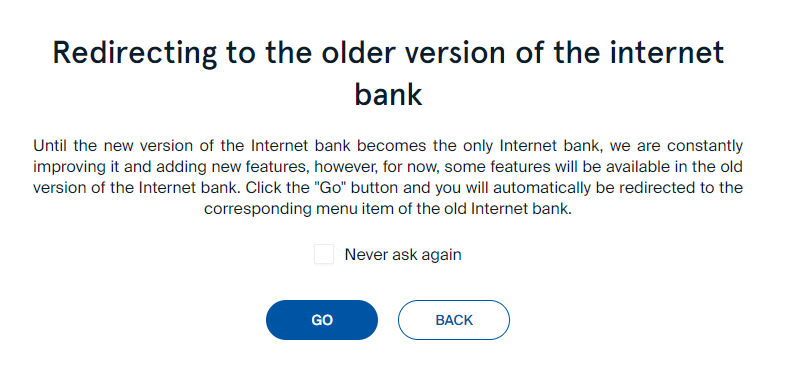
- Click on Go (choose the option Never ask again so that you can avoid this step in the future):
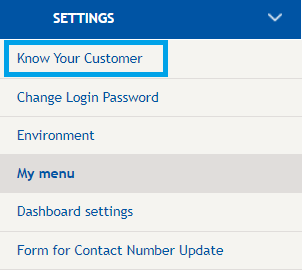
- In the Settings window, go to Know Your Customer:
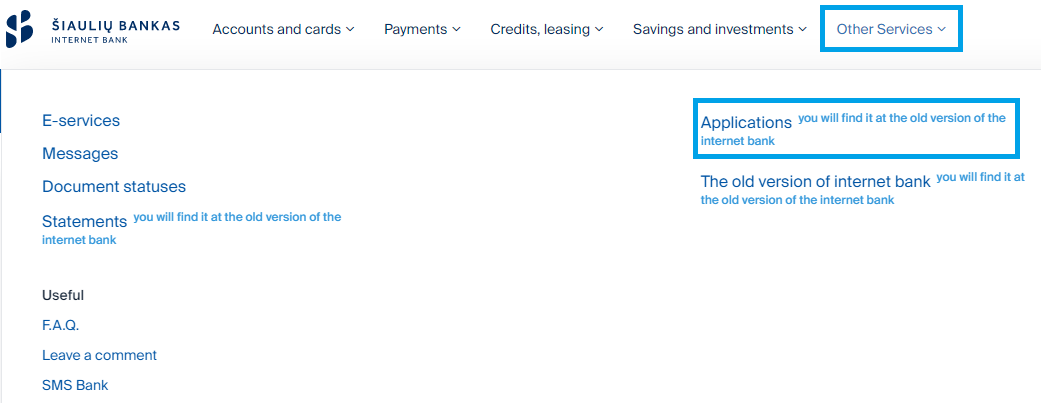
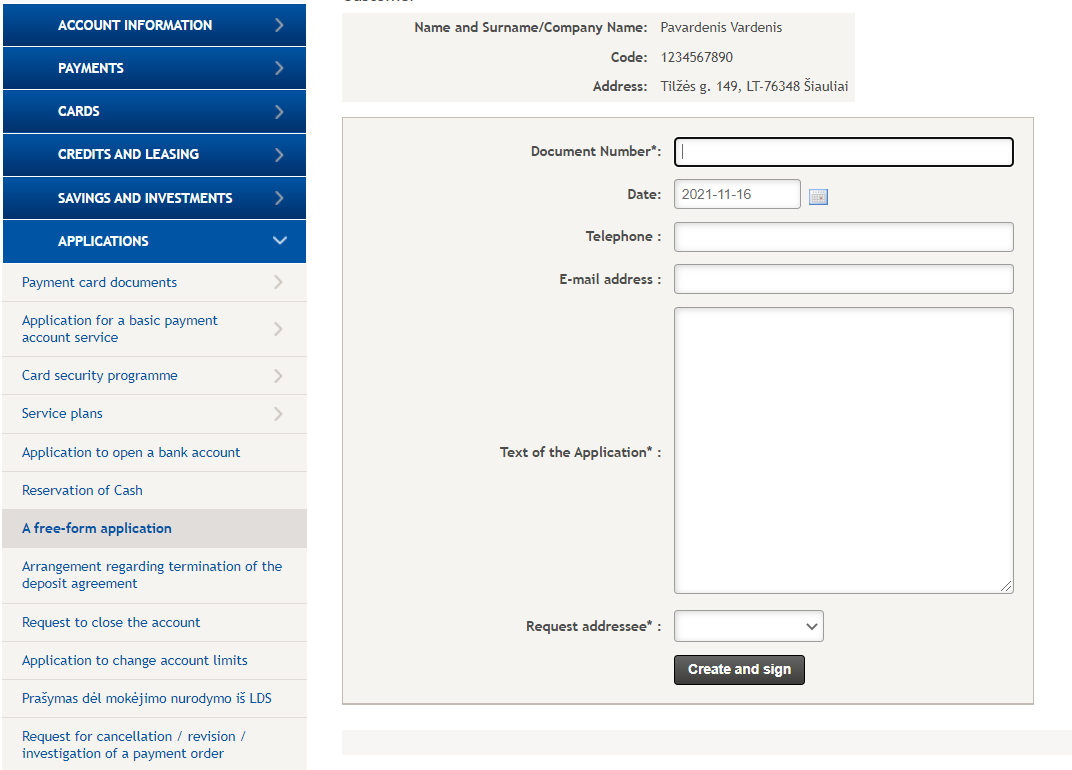
To open application and request forms, go to the old version of the Internet Bank:
- Log in to your Internet Bank account, go to Other Services -> Applications.
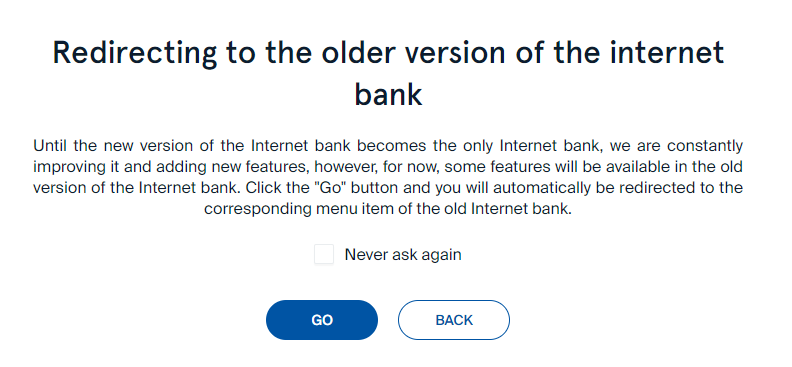
- Click on Go (choose the option Never ask again so that you can avoid this step in the future):
- Choose the required application form the menu on the left.
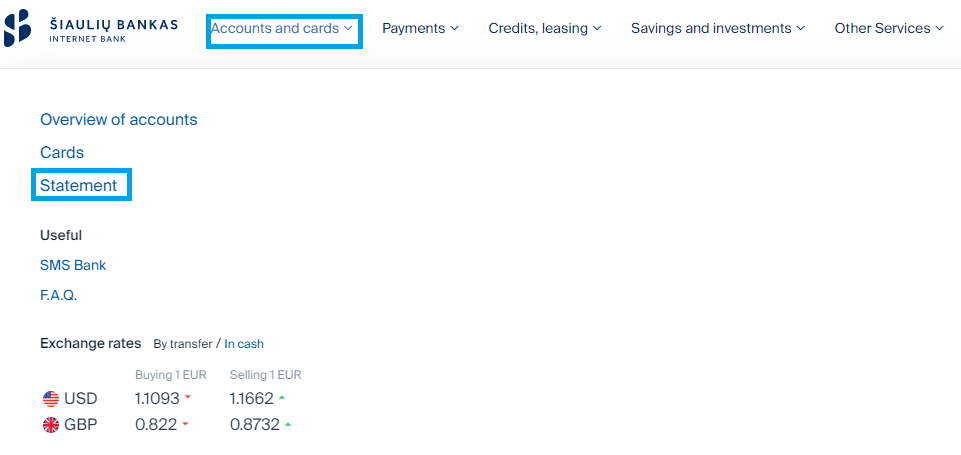
All transactions that were completed are shown on the statement page. Choose Accounts and cards from the menu and go to Statement.
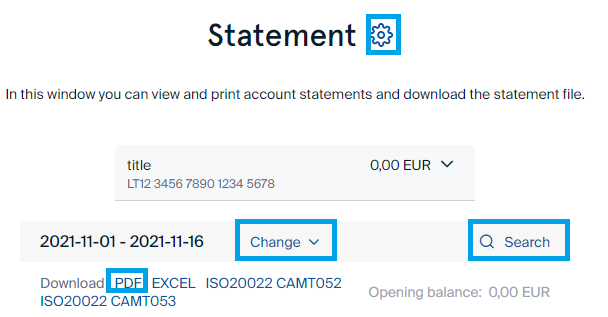
In the page that opens, you can adjust the display settings, time period, and perform search. Once you click on the relevant transaction, you will be offered an option to Repeat, Create A Beneficiary, Reply (only for SEPA and international payments). You can also download the statement in PDF and other available formats.
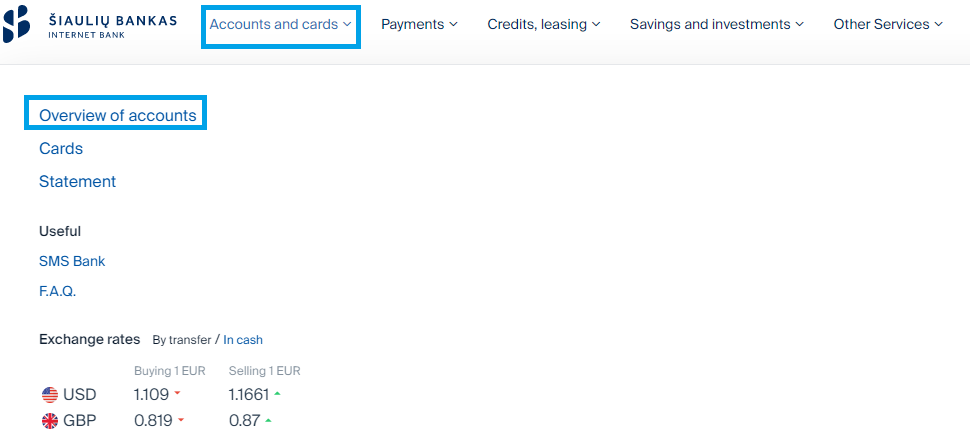
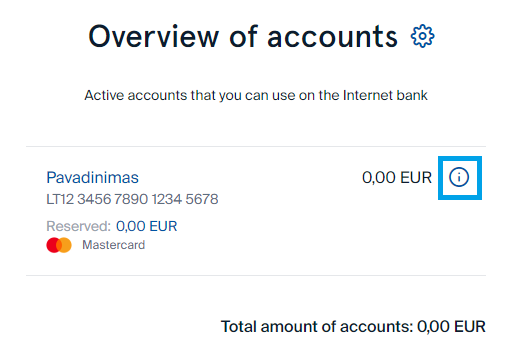
- You can check the reserved amounts by choosing Accounts and cards from the menu and going to Overview of accounts.
- Click on the icon next to the relevant account (letter i in a circle).
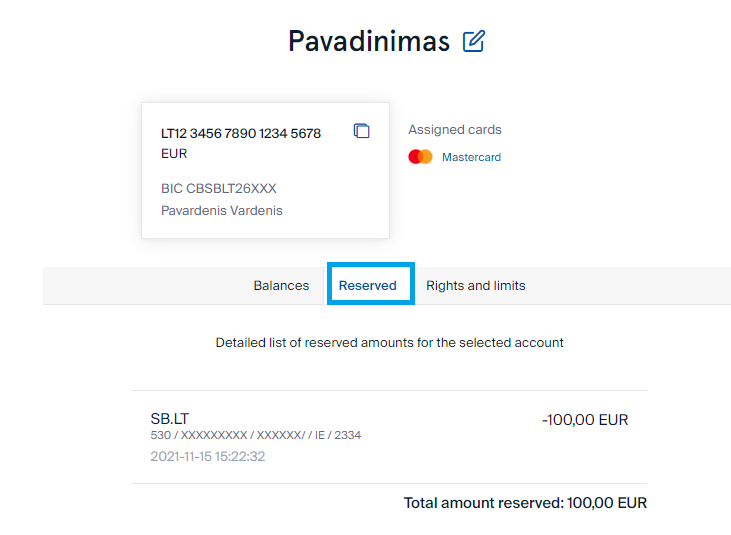
- Select Reserved.
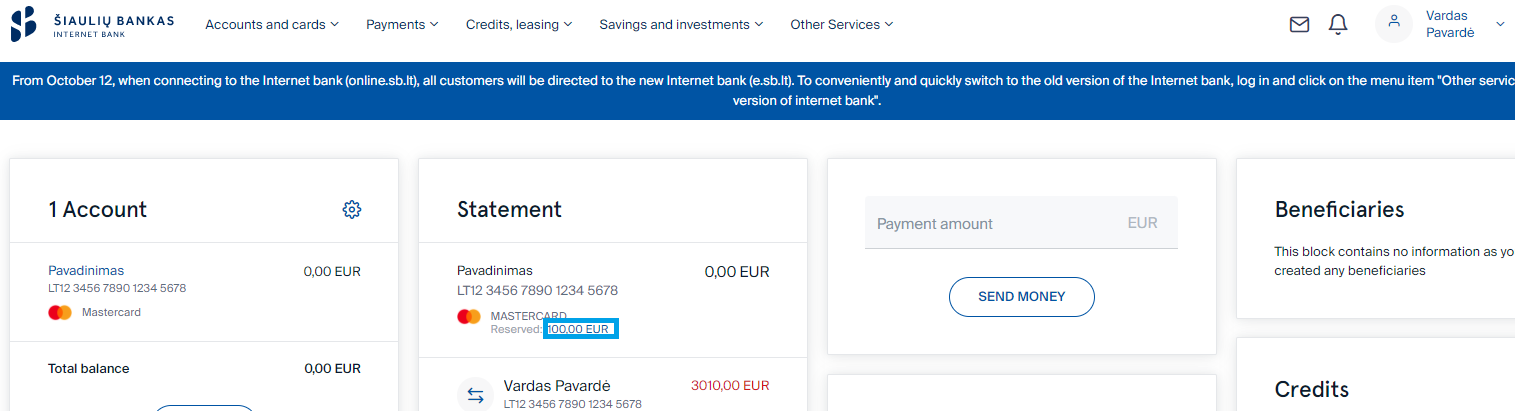
- The amounts are also shown on the main page.
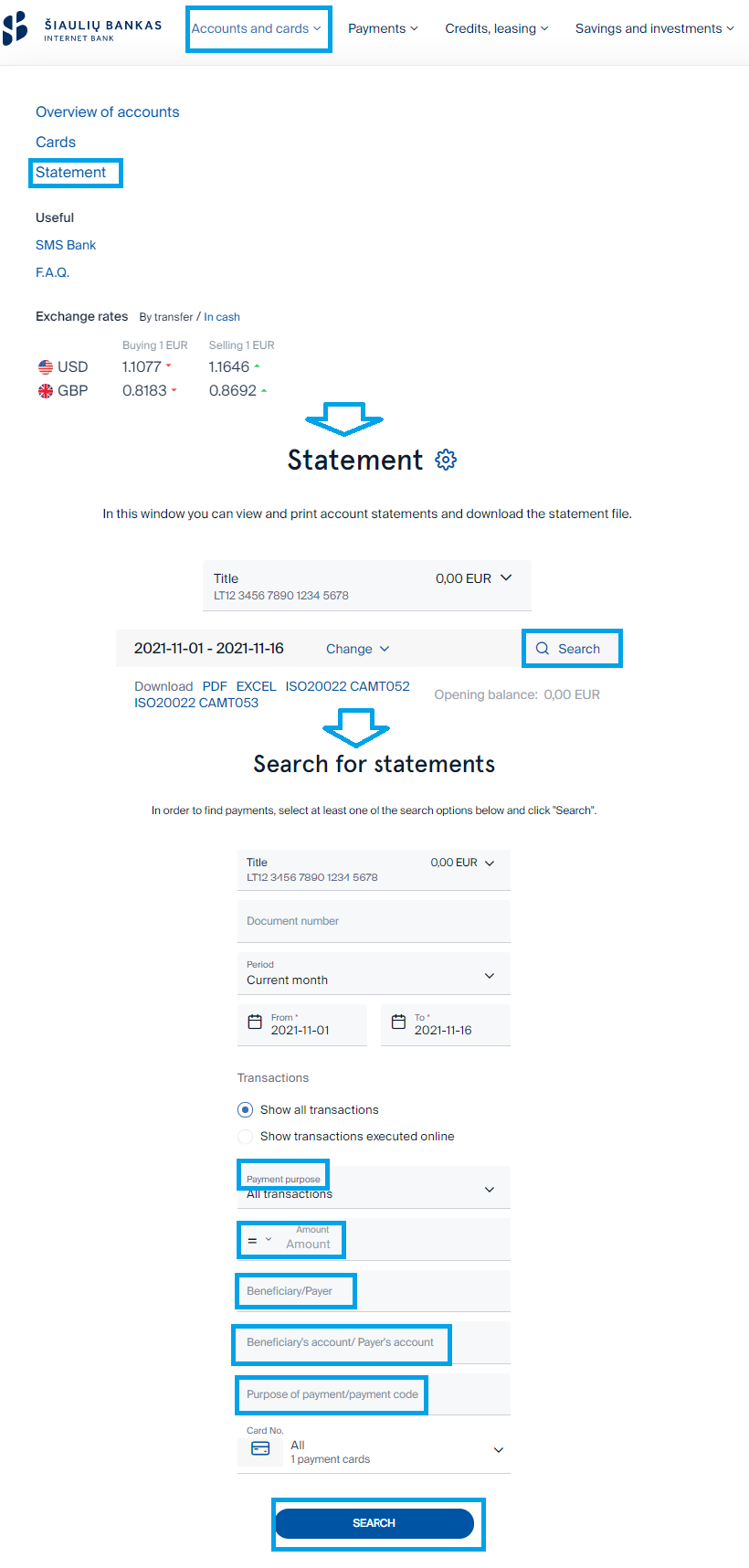
On the statement page (in the menu, go to Accounts and cards -> Statement), click on the Search button. In the new window (Search for statements), enter/specify the relevant criteria and click on the Search button. The transactions will then be filtered according to the selected filter values.
On the statement page (in the menu, go to Accounts and cards -> Statement), find the required payment and click on the payee’s name. Once the window with a detailed payment information is opened, click on the Repeat button at the bottom of the screen – this will open a new payment order form with the payment details in place. Check the information and confirm the payment. You can repeat the following payment transactions: between own accounts, SEPA, international payments, currency exchange.
Unconfirmed payments from different accounts are shown separately. Before payment orders are signed, they are shown on the page of the account that was used to place them.
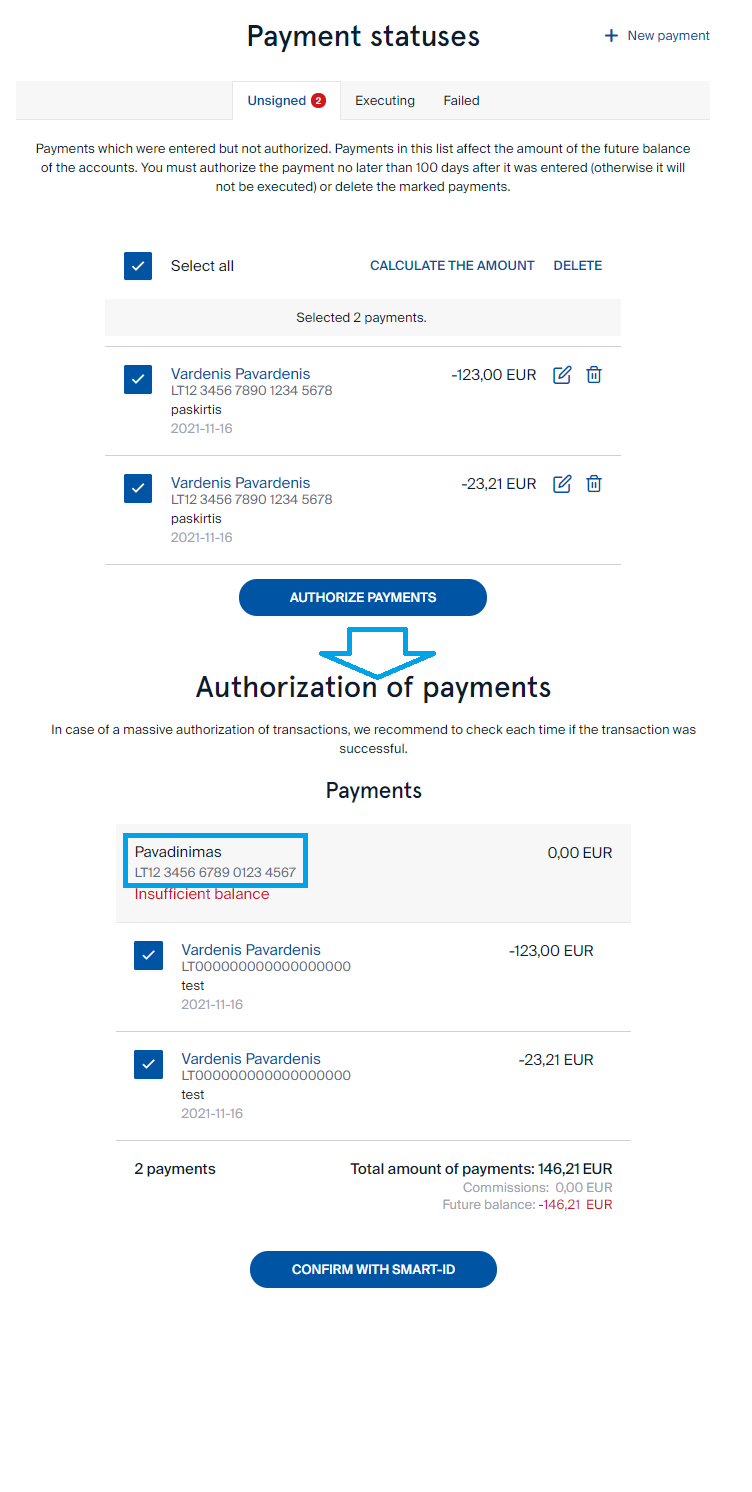
The payer’s account is also shown in the detailed payment review window (click on the payee’s name).
You can cancel credit transfers in the section of Executing Payments (Payments > Payment statuses > Executing) of the Internet Bank by yourself. Here you will find transfers that you have submitted on weekdays after the Bank's scheduled hours, on weekends and on public holidays, before these transfers have been sent from the Bank.
Subject to technical possibilities, SEPA credit transfers submitted on banking days between 16:00 and 18:00 may be executed and reach the beneficiary 's bank on the same business day.
If you have not found the transfer you wish to cancel in the Internet Bank section mentioned above, you will need to complete a credit transfer cancellation application. Application to cancel payments entered and signed via the Internet Bank are available at Other services → Applications → Request for revocation / adjustment / Investigation of a payment order.
A fee is charged for the cancellation of a transfer, in accordance with the Bank's current service and transaction fees, regardless of whether the funds are returned.
If the transfer has been sent to another bank and the funds have been credited to the beneficiary's account, the funds may only be returned to you with the consent of the beneficiary.
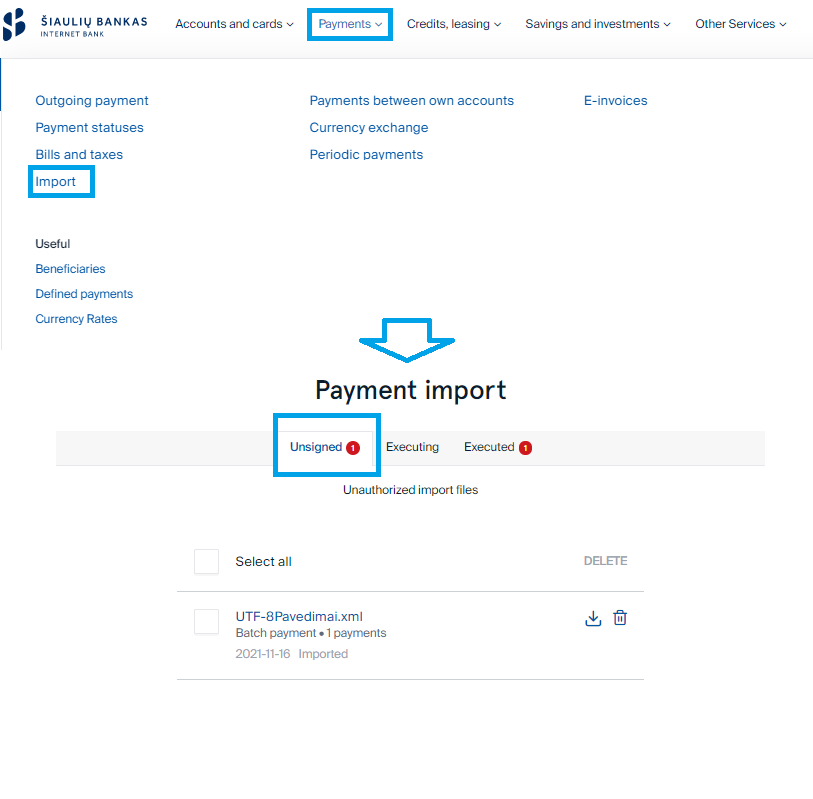
An import file that has been uploaded but has not been signed can be found in Import -> Unsigned.
At the time of signing their internet bank services agreement, or by submitting a request, the principal internet bank user shall specify the company employees who will have access to internet bank and the scope of their rights to perform transactions.
Yes, the security of the system is ensured by means of multi-tier user identification system; the data communication line ix encrypted with TLSv1.x standard protocol.
The most common reason is that the internet browser does not meet the requirements.
Self-updating and fully manufacturer-supported versions of Microsoft Edge, Mozilla Firefox, Google Chrome, Safari browsers must be installed, using the most recent versions is recommended. Do not store your forms and password data in cache memory of the browser.
Use computers featuring legal, self-updating operation systems, e.g. Windows 10 or later versions.
If the internet bank user has no internet access, they are able to use internet bank free of charge at the information terminals available at branch offices of the Bank.
If you have concerns about the security of your internet banking and / or have lost your access details, it is advised that you block access to your internet bank as soon as possible. You can do it in one of the following ways:
- by visiting and submitting a written request at any of the bank's branches during business hours;
- by calling +370 610 44447 on the bank's working days from 8:00 a.m. to 10:00 p.m.;
- 5 (five) times incorrect entry of the login password/user's personal identification number;
- temporarily blocked in case of 3 (three) incorrect entries of the code received by SMS / code generated by the Generator and blocked in case of 3 more incorrect entries.
If you block access to your internet bank, your log-in rights can be restored only by visiting any branch of Artea bankas and submitting an application (please, bring your ID document). Blocking the access does not automatically terminate your internet banking services agreement with the Bank for the use of internet banking.
The system blocks access if a wrong log-in password is entered 5 (five) times in a row when accessing internet bank.
In order to restore your access rights, please, visit any branch of Artea bankas (bring your ID document).
The system blocks access if a wrong signature code (from the password card, code generator, mobile signature) is entered 3 (three) times in a row when accessing internet bank.
The system won’t check further passwords until you restore your rights. In order to restore your rights, please, visit any branch of Artea bankas (bring your ID document).
There is no fee for logging-in to the internet bank service. The fees charged by the Bank for financial transactions conducted via internet bank can be found here.
- If the payer’s and the payee’s bank accounts are with Artea bankas, payment order is executed on the same day, except in the cases set out on Artea bankas website www.sb.lt next to the timing for the execution of internet bank transactions.
- The timing of the execution of payment orders to other banks registered in Lithuania and foreign banks is set out on Artea bankas website www.sb.lt next to the timing for the execution of internet bank transactions.
You can check if your payment order has been executed by reviewing your account report (under internet bank menu point Sąskaitos ir kortelės -> Išrašas (Accounts and Cards -> Report).
You can review the error description of the declined transaction in the internet bank menu point Mokėjimai -> Mokėjimų būsenos -> Atmesti (Payments-> Payment Status -> Declined). In order to repeat the declined transaction, press on the transaction, then press Repeat in the transaction review form.
You can check your account balance by pressing the internet bank menu point Sąskaitos ir kortelės -> Sąskaitų apžvalga (Accounts and Cards -> Account Overview).
At the time of signing your internet bank services agreement and / or submitting a written application, you specify the accounts you wish to see in, and manage via, internet bank. If you wish to supplement the list of accounts, please, fill-in a written application in internet bank (in menu item Kitos paslaugos (Other Services) -> Paraiškos ir prašymai (Applications and Requests) -> Laisvos formos prašymas (Free-Form Application)), or visit any branch of the Bank.
The following transaction limits apply to each private account managed via internet bank:
- Transaction Limit – EUR 20,000;
- Daily Limit – EUR 20,000;
- Monthly Limit – EUR 100,000.
If you need to change your transaction limit, please visit a branch of the Bank, or select internet bank menu point Kitos paslaugos (Other Services) -> Paraiškos ir prašymai (Applications and Requests) -> Prašymas pakeisti sąskaitų limitus (Request to Change Account Limits).
The following transaction limits apply to each corporate account managed via internet bank:
- Transaction Limit – EUR 200,000;
- Daily Limit – EUR 200,000;
- Monthly Limit – EUR 2,000,000.
If you need to change your transaction limit, please visit a branch of the Bank, or select internet bank menu point Kitos paslaugos (Other Services) -> Paraiškos ir prašymai (Applications and Requests) -> Prašymas pakeisti sąskaitų limitus (Request to Change Account Limits).