
How do I add a card
to Apple Pay?

Through the Artea Bank mobile app
Through the Apple Wallet app
Important! You can add one card to Apple Pay on several different devices (different phones, watches).
If you want to add a card through the Artea Bank mobile app
Download the Artea Bankas mobile app from the App Store or, if you have already downloaded it, be sure to update it;

Open the Artea Bankas app;
When you first sign in to the app, you will see a pop-up window inviting you to add your card to Apple Wallet. If you select a) “Add card”, you will be taken directly to the list of cards, if you select b) “Skip”, you will be taken to the first window of the app;
Go to “Cards”;
Select the card you want to use with Apple Pay and click on its image. The “Add to Apple Wallet” button will appear below;
In the window that opens, click “Next”;
Read the Terms and Conditions of Artea Bankas and confirm that you agree with them by clicking the “Agree” button;
If you have more cards added to Apple Pay, you can set your Artea Bankas card as your primary card: open the Apple Wallet app -> click on your Artea Bankas card and drag the card’s image over your other cards to the top of the list;
That’s it! You can pay with your phone and Apple Pay!
Relevant information
- Open the Apple Wallet app or download it from the App Store;
- Click the “+” sign and select “Debit or Credit Card”;
- Select Artea Bankas or “Add a Different Card” and click “Continue”;
- Scan the card or select “Enter Card Details Manually” and enter the requested information;
- Read the Terms and Conditions of Artea Bankas and confirm that you agree with them by clicking the “Agree” button;
- Confirm your card is added to Apple Pay by selecting “Text Message” and clicking “Next”;
- When you receive an SMS from artea.lt with a one-time code, enter the code in the “Verification Code” field and click “Next”;
- If you have more cards added to Apple Pay, you can set your Artea Bankas card as your primary card: open the Apple Wallet app -> click on your Artea Bankas card and drag the card’s image over your other cards to the top of the list;
- That’s it! You can pay with your phone and Apple Pay!
You can use your phone or watch to pay at locations marked with a contactless or Apple Pay badge: 
- to use Apple Pay, your card must have contactless payment enabled;
- before you pay, make sure NFC is enabled in your phone settings;
- the transaction limits set for the card apply to the payment amounts;
- you can also use your phone to perform transactions at ATMs with contactless access. Cash deposits cannot be made using a phone;
- If you pay with Face ID:
- Double-click the side button, then look at your phone and let Face ID capture and recognise your face (or enter your password).
- Hold your iPhone up to a card reader that accepts contactless payments. Hold the phone until you see the successful payment message (“Transaction completed”, etc.) on the reader screen.
- If you pay with Touch ID:
- Place your finger on the Touch ID sensor.
- Hold your iPhone up to a card reader that accepts contactless payments. Hold the phone until you see the successful payment message (“Transaction completed”, etc.) on the reader screen
- If you pay with your Apple Watch:
- Double-click the side button on your Apple Watch and touch the watch to a card reader that accepts contactless payments.
- Your Apple Watch will beep to let you know you’ve successfully paid.
|
Once you’ve added your card to Apple Pay in the mobile app:
|
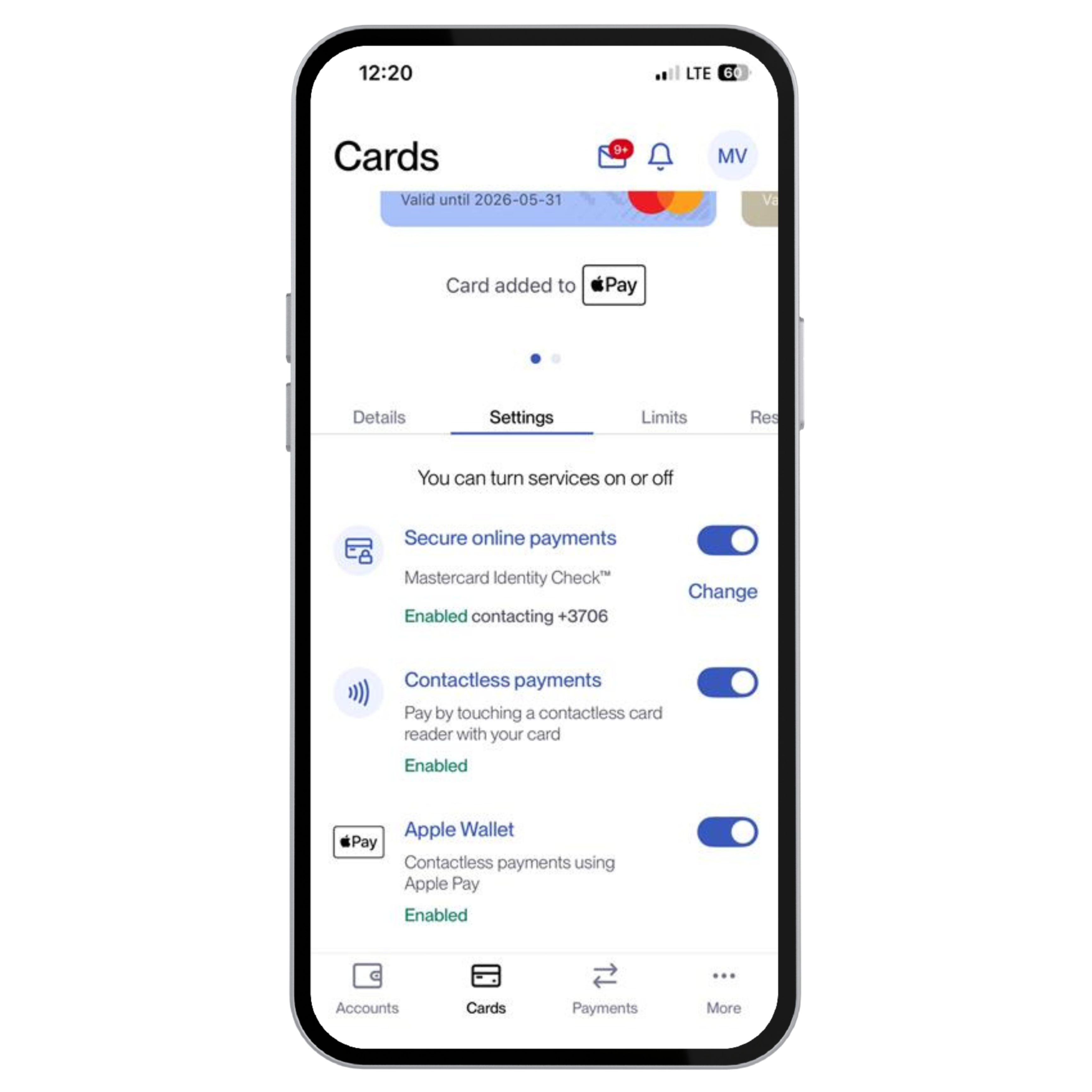 |

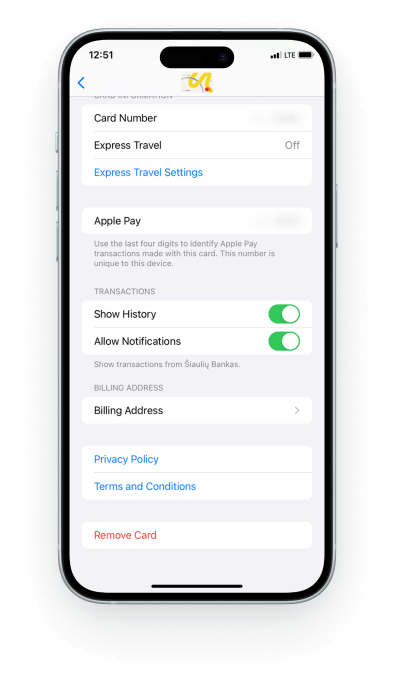
You can remove your card through the Artea Bank mobile app in the card’s “Settings” by clicking the Apple Wallet disable button and confirming the removal: |
|
|
 |
To find out more about how to pay with Apple Pay, visit the official Apple website.
You may also be
interested in

Payment cards
Safe, comfortable and modern payment instrument to pay for everyday purchases.

Security programme
Payment card security programme, designed to help protect your finances from unauthorized transactions.
Contactless payments
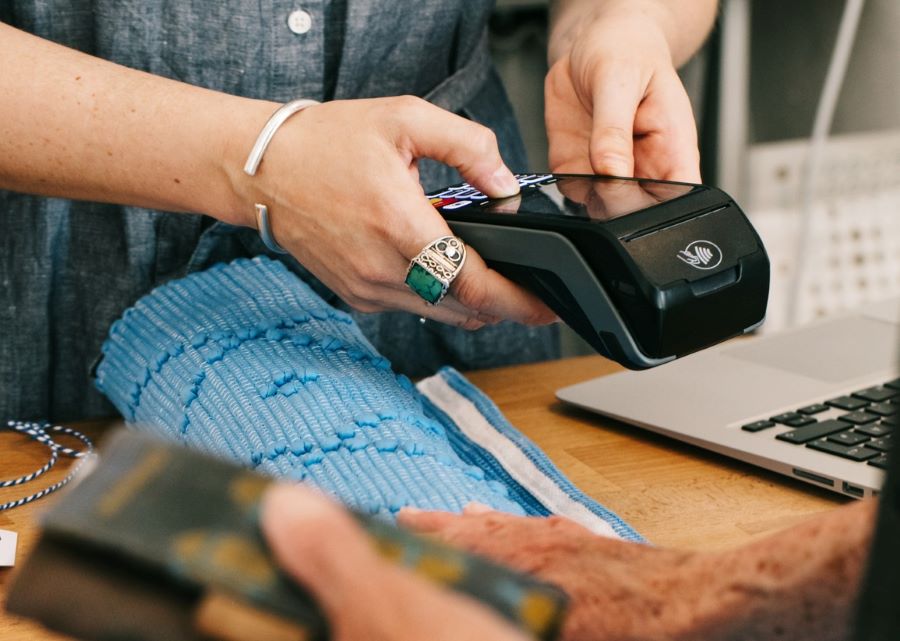
Pay for purchases not exceeding 50.00 EUR by simply pressing the bank card to the reader.